Introduction
Inventor Garage Portal and Woven City App Tools
- Inventor Garage Portal is web app for managing your projects in general.
- Woven City App Tools is sub interface within Inventor Garage Portal for managing Woven City App related features such as MiniApps.
- Under the Woven City App Tools, you can find the MiniApp Tab which is the tool to submit your MiniApp to be published on Woven City App.
- Under one project in Inventor Garage Portal, you can create multiple MiniApp versions but can only have one active version of your MiniApp at a time.
Release steps
Follow these steps to release your MiniApp:
1. Prepare the url of your MiniApp
- Once you created your MiniApp, you need to host it yourself and submit the URL using the Woven City App Tools. (If you don't have a hosting solution, please reach out to us on Woven City App Chat feature through the MiniApp Explorer Project.)
2. Submit your MiniApp :
- Open your project inside the Inventor Garage Portal and click
Woven City Appon sidebar - Under
MiniApp Tab, set your MiniApp configuration and input your MiniApp url in the textbox and clickCREATEbutton. - After that, you can check your MiniApp in the Woven City App!
warning
To access MiniApp Platform APIs (such as Notifications, Chat and Payment), you'll need server-side authentication credentials (client_id and client_secret).
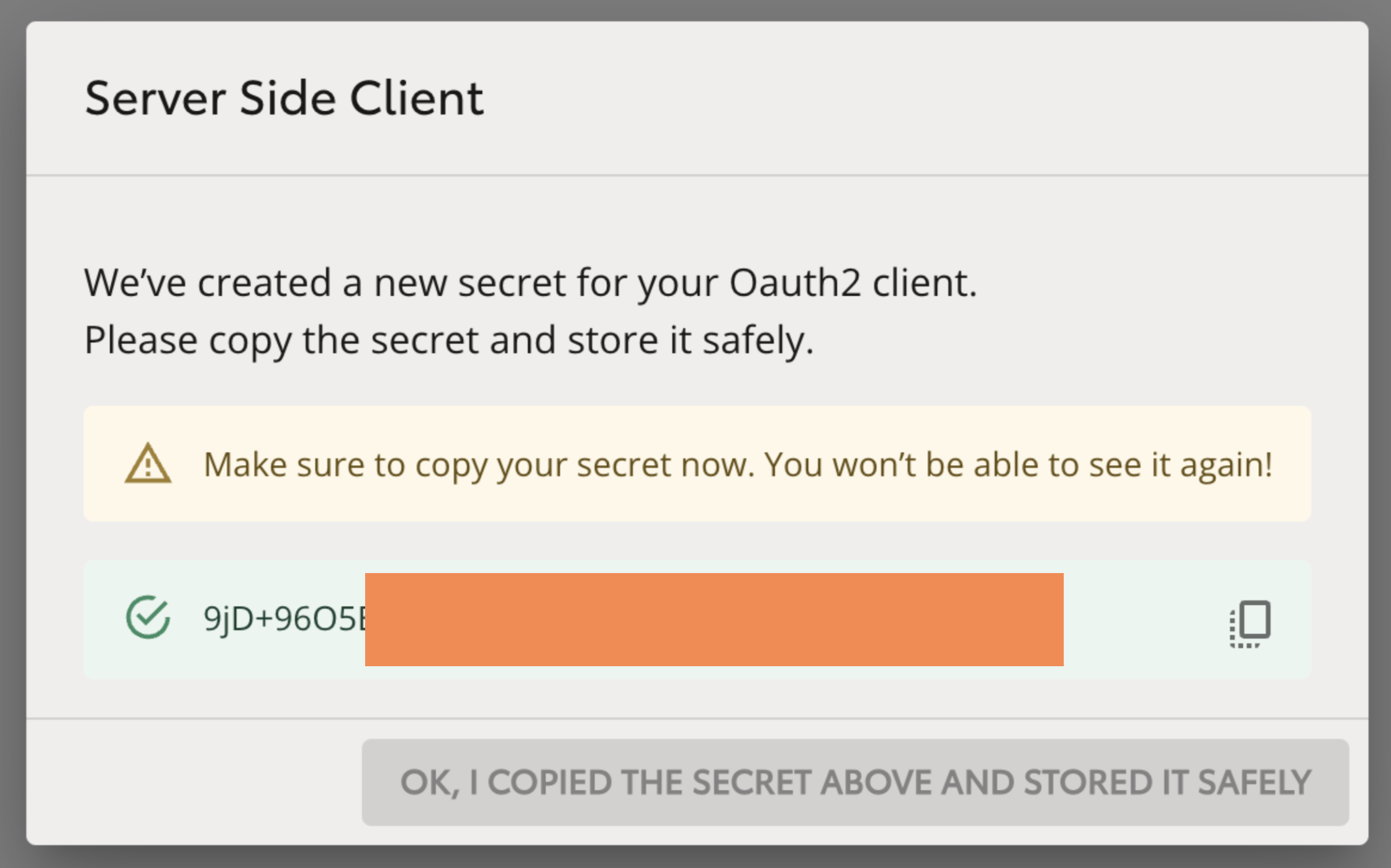
When creating a MiniApp for the first time, you'll receive a one-time popup (shown below) displaying your server-side client secret. Copy and store this secret securely, as it will be difficult to retrieve later. Note that these credentials will remain unchanged when you create new versions of your MiniApp.
info
Both your Server-side client ID and Seamless login client ID can be found anytime in your MiniApp details page.
For additional details, please refer to our FAQ but in short:
- You'll need the Server-side client_id and its client_secret to obtain access tokens from Keycloak that can be used to access MiniApp Platform APIs
- While you won't directly use the Seamless login client credentials, we recommend implementing the following security practice:
- When your frontend receives a token from the SuperApp following successful seamless login
- Use this token to authenticate requests from your frontend to your backend
- Validate that the token contains an "azp" claim with a value matching your Seamless login client_id